


Primary and unique keys
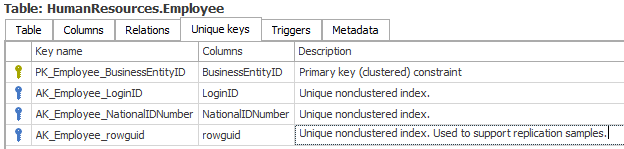
Dataedo imports table primary and unique keys. Those unique keys might be unique indexes or unique constraints in case of Oracle. They are presented in one table in Unique keys tab.
To describe unique keys edit text in description field.
Relations (foreign keys)
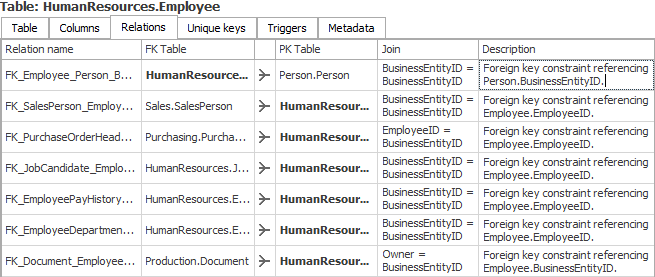
Dataedo imports foreign keys and displays all the keys in a table in Relations tab.
To describe foreign keys edit text in description field.
Documenting non-existing unique keys and relations
One of the unique Dataedo features that bring value added over simple export is the ability to document non-existing unique keys and foreign keys. What does it mean? Data constraints are not always imposed by database schema architects. There are many reasons for this, sometimes its poor quality of data, sometimes it's just omission and sometimes it's done by design, in data warehousing for instance.
Non defined constraints, the ones that exist only logically, but not in DBMS are only in heads of some architects, DBAs and developers. This is something that should be part of your documentation and Dataedo enables you to define it and add to documentation just as if it was imported from DBMS. They are called user-defined unique keys and user-defined relations.
Note: User-defined unique keys and relations exist only in Dataedo repository and are not populated back to database schema.
Keys and relations for views
Another important feature that marks Dataedo out of other tools is the ability to define unique keys and foreign keys for views. This is not possible in any DBMS at all. But it is very important information if your view has any column (or set of columns) that can be considered primary key or how to join a view with other tables, when you are using a it in your SQL queries.
In Dataedo you can define unique keys and relations for views just as for tables. You can mix tables and views in your foreign keys/relations.
Entity Relationship Diagrams
Regular or user-defined relations are used to draw Entity Relationship Diagrams.
Adding user-defined unique keys
To add user-defined primary or unique key for your table/view go to Unique keys tab and click Add key button on the ribbon or from context menu under right click.


This will open a key form:
- Name - name of the key. It is optional, a default name will be set after saving
- Type - you must choose a type of a key - primary or unique
- Columns - you must choose from a dropdown one or more column that will be part of your key
- Description - you may provide description of your key. This is the same field as in the table of keys
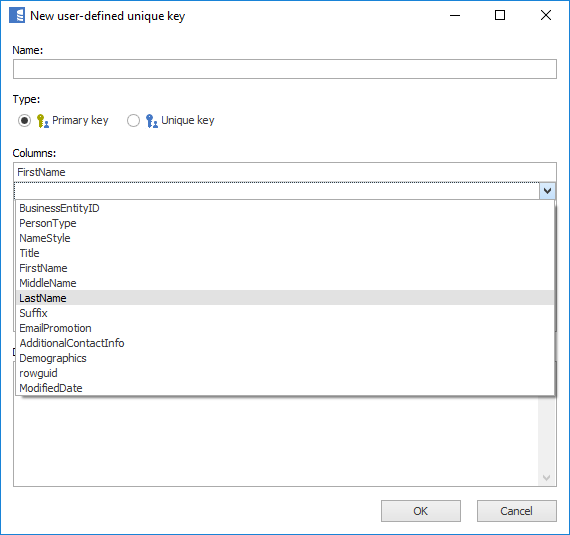
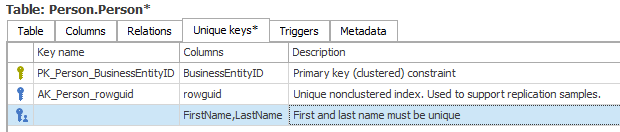
Once you provided all the fields click OK to add a key. New key will be added to the table of keys. Note that user-defined keys have icons with a blue man (
 ).
).
Editing user-defined unique keys
To edit key select key in the table and click Edit key button on the ribbon or from context menu under right click.

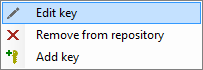
The same form will open, and you will be able to provide changes.
Adding user-defined relations
To add user-defined relation (foreign key) for your table/view go to Relations tab and click Add relation button on the ribbon or from context menu under right click.

This will open a key form:
- Name - the name of the key. It is optional, a default name will be set after saving,
- FK Table - foreign table, this field is disabled as you are defining a foreign key for current table/view. If you need your table to be primary, add relation from the other tables form,
- PK Table - choose primary table/view from drop down with all the tables and views from your documentation,
- Columns - you must choose from a dropdown one or more pair of columns that will be part of your foreign key,
- Description - you may provide description of your relation. This is the same field as in the table of relations.
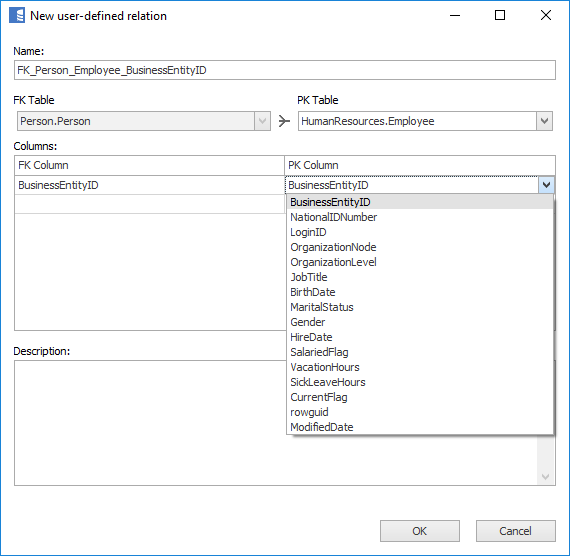
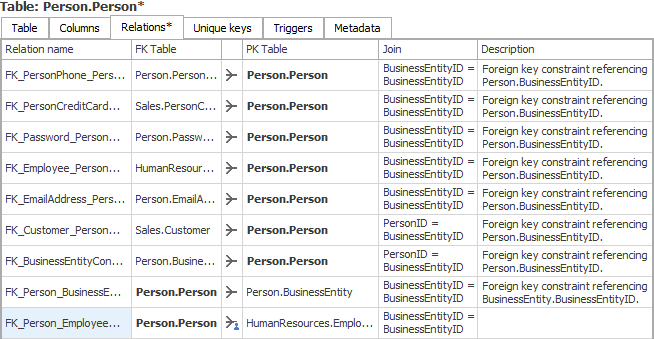
Once you provided all the fields click OK to add a relation. New relation will be added to the table of relations. Note that user-defined relations have icons with a blue man ( ).
).
Editing user-defined relations
To edit key select key in the table and click Edit key button on the ribbon or from context menu under right click.

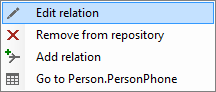
The same form will open, and you will be able to provide changes.