


 Piotr Tokarski
Dataedo Web can create database users and grant them access to Dataedo Web as long as the initial server login is created.
Creating a server login
If you already have an SQL login on the server Dataedo repository is stored on, you can skip this step. To create a new server login, first, connect to your server with SSMS or equivalent.
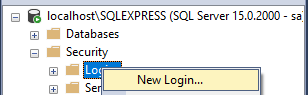
Open the Security folder, right-click on the Logins subfolder and choose the New login option from the context menu.
Then specify the login details in the newly opened window.
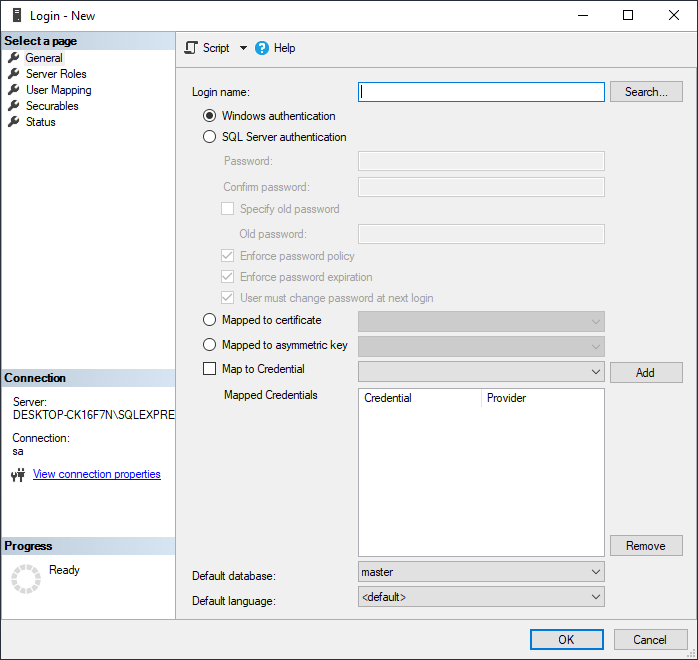
Or just run one of the following commands in a New query window:
create login new_dataedo_user with password='P@ssword'
for SQL Server authentication, or
create login [domain\existing_domain_user] from Windows
for domain authentication.
Creating a Dataedo user
Open Dataedo Web with a user that has Admin status (for example, the user that created or first connected to the repository), and switch to the Users tab. You should see the list of available logins.
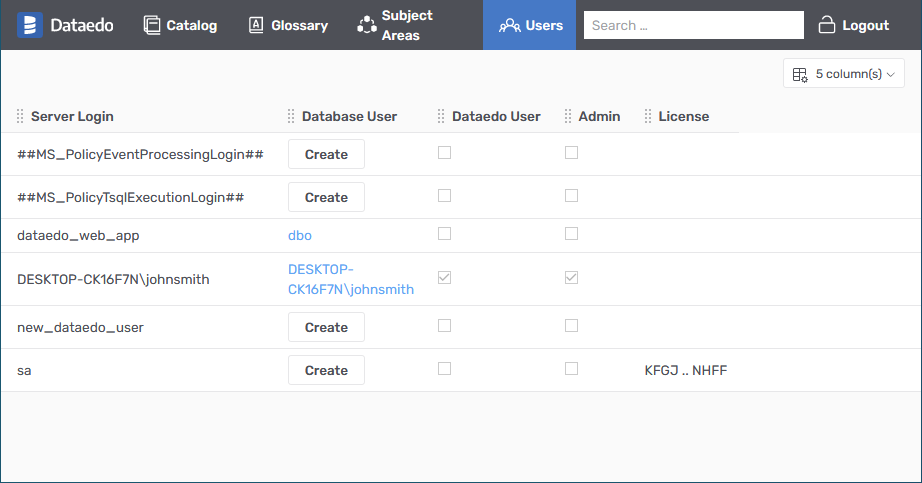
Find the login you want to create a Dataedo user for (in our example it's the new_dataedo_user) and click the Create button.

A username linked to the login should now be visible where the Create button was previously - click it to open the window to edit details.

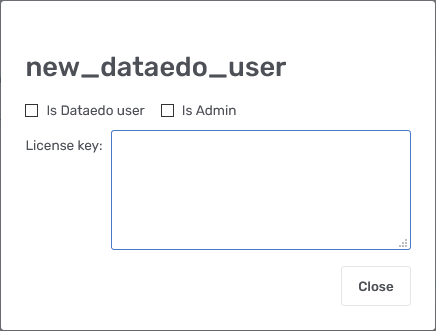
You should now see the details window for the chosen user. Specify whether the user should be allowed access to Dataedo by checking the Is Dataedo user box. If you want the user to have Admin status for user management purposes, check the Is Admin box too. Finally, paste the license key for the user and click the Close button.
Disabling Dataedo Web access for a user
Open Dataedo Web with a user that has Admin status (for example, the user that created or first connected to the repository), and switch to the Users tab. You should see the list of available logins.
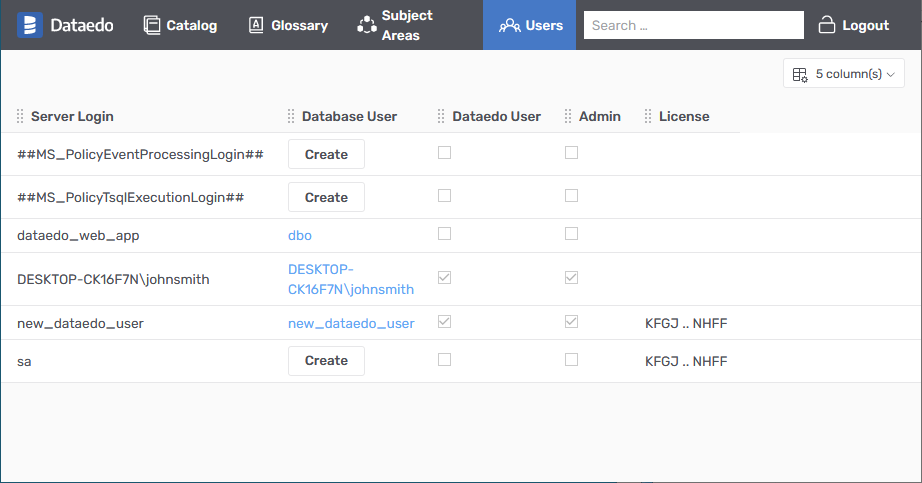
Find the user you want to remove access from.
Uncheck the Is Dataedo user and Is Admin boxes, then delete the license key. Click the close button.